Quickstart
This walkthrough takes you from a blank account to an employee that has done real work for you. It follows the dashboard as shipped today.
1. Create your account
Section titled “1. Create your account”Sign up with your name, email, and a password (at least 8 characters with an uppercase letter, a lowercase letter, and a number), or use Continue with Google. After registering, check your email for a verification link, then log in. You land in the dashboard, on the Chat page.
2. Hire your first employee
Section titled “2. Hire your first employee”Open Infrastructure in the sidebar and choose Add employee. The form asks for:
- Bot name: the name you’ll use for the employee, for example Atlas.
- Role / job title: for example Executive Assistant or Sales Development Representative.
- Job description and responsibilities: what the employee owns, delivers, and escalates. This text shapes how the employee behaves, so write it like a job ad, not a feature request.
Pick a plan (SOLO or SOLO Pro, each covering exactly one employee) and choose monthly or yearly billing. Then choose Pay & add employee and complete checkout. When payment verifies, the dashboard tells you your employee is being set up.
3. Wait for provisioning
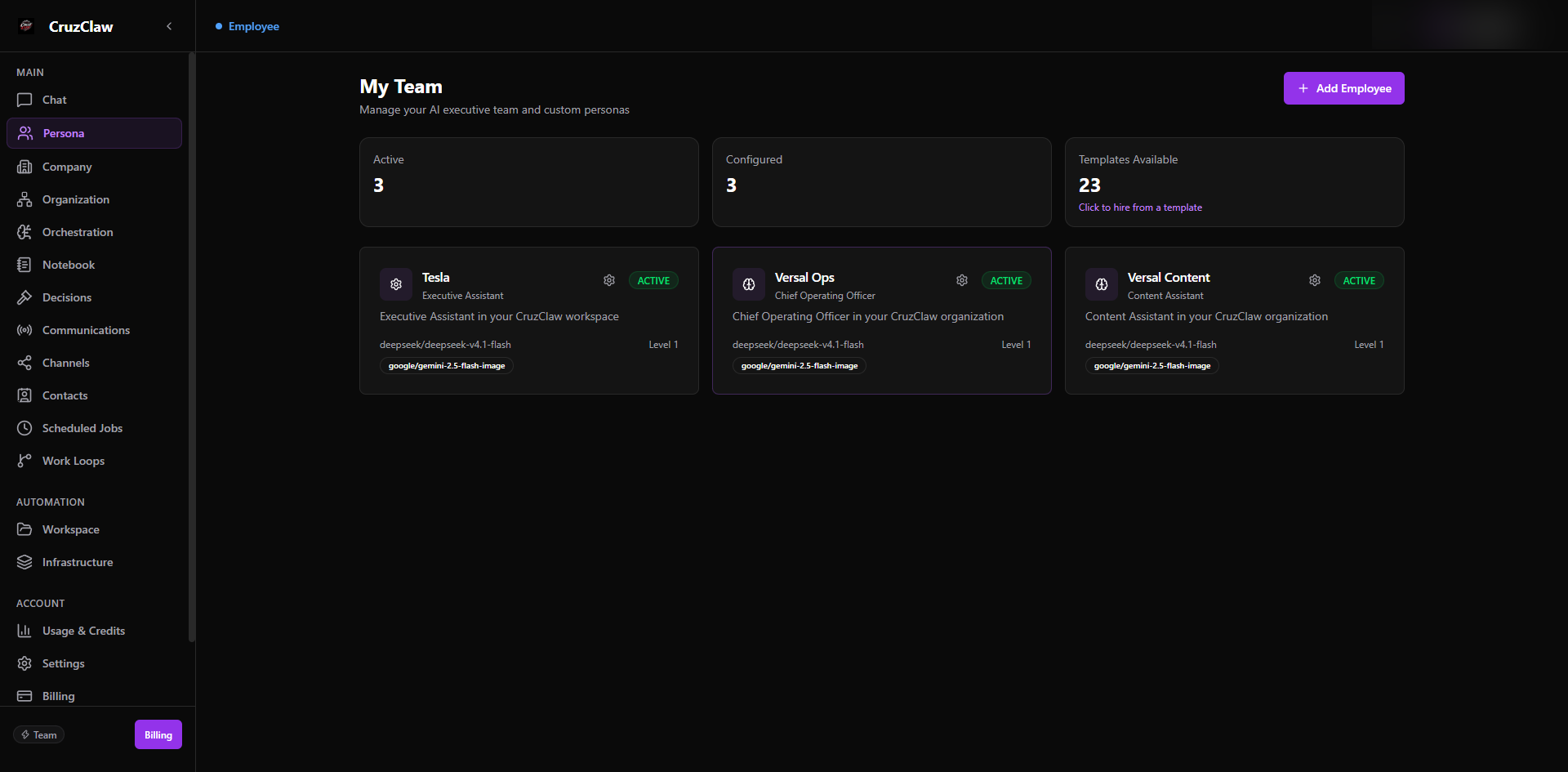
Section titled “3. Wait for provisioning”Provisioning runs in the background. The employee appears on the Infrastructure page while its dedicated runtime is created and configured, and it is ready once its status shows it is running. It then shows up on the Persona page (the “My Team” list) with an ACTIVE badge next to its name.
This is a good moment to write down the first job you want to hand over.
4. Give the first task
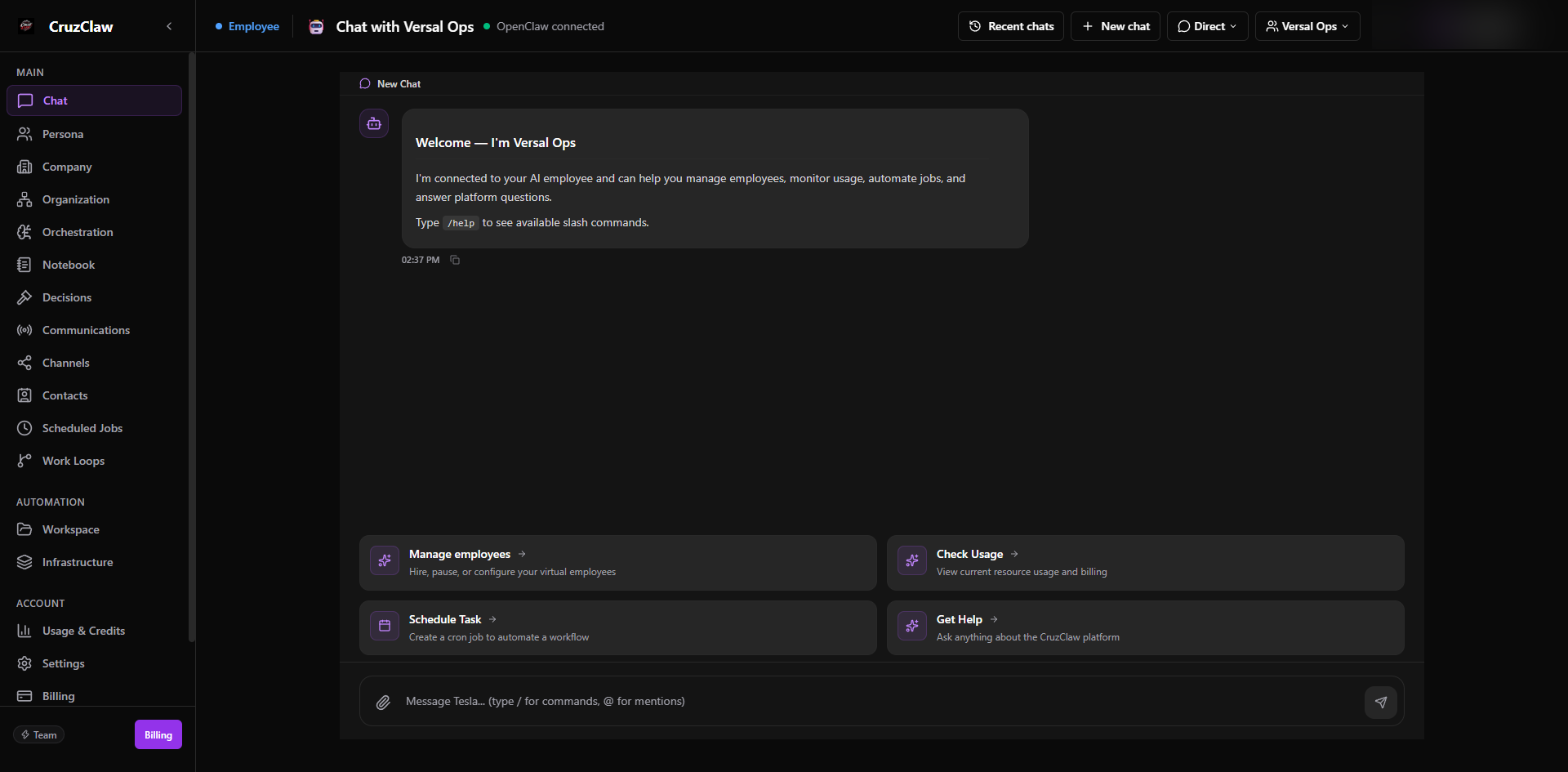
Section titled “4. Give the first task”Go to Chat, select your employee, and type the task in the message box. A specific, bounded task works best for a first run:
“Every morning, summarize my unread email and list anything that needs a reply today.”
The reply comes back in the same conversation, and the conversation stays open so you can steer, correct, and build on it. If the reply isn’t right, say so: the instructions you give in chat are how the employee learns your preferences.
5. (Optional) Connect a channel
Section titled “5. (Optional) Connect a channel”Employees work through Channels: WhatsApp, Telegram, Discord, Slack, Microsoft Teams, Google Chat, Signal, iMessage, email, and others. Open Channels and choose Add Connection, then follow the setup wizard for the channel you want:
- WhatsApp links by scanning a QR code with your phone.
- Google-based channels (email, calendar, contacts) connect through a Google sign-in.
- Others (Telegram, Discord, Slack) ask for that platform’s bot or workspace credentials.
A channel belongs to one employee. Until you connect one, your employee works with you through dashboard chat alone, which is a fine way to start. See the Channels section for per-channel detail.
6. Answer the first approval request
Section titled “6. Answer the first approval request”When your employee tries to do something consequential (send an email, message a contact, run a gated action), the action pauses and a pending approval appears in the top-bar notifications. Open it to see the tool, the action, and exactly what would happen, then choose:
- Approve: the action executes, exactly once.
- Reject: nothing happens; the employee is told it was declined.
- Edit and approve: change the payload (for example the wording of a message) and approve your version.
- Instruct: answer with direction instead of a yes/no, and the employee continues with that guidance.
Some approvals are notifications only and ask you to Acknowledge rather than dispatch anything.
Where to go next
Section titled “Where to go next”- Concepts: the mental model behind everything above.
- Channels: connect WhatsApp, Slack, or email in depth.
- Working with employees: instructions, personality, memory, and routines.
Last verified: 2026-10-24 against the shipped codebase.